|



|
Getting Started - Third Party Logistics with Kitting
In this tutorial we are going to cover using the Almyta Control System for kitting,
i.e. assembling different inventory items into one package.
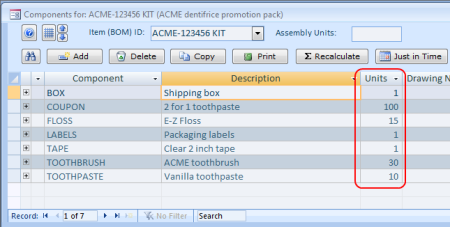
The situation is this: the Order Fulfillment Center has an inventory of 10 000 Sampler Acme Toothpaste tubes, 15 000 Sample Acme Floss Packs, 30 000 Sampler Acme Toothbrushes, 100 000 Acme promotional coupons, 1 000 parcel boxes, 1 000 postage labels, and 1000 ft. packaging tape. The Order Fulfillment Center's client, Acme Supply Company, supplied the toothpaste, floss, brushes, and coupons. The parcel boxes, postage labels, and packaging tape were supplied by Staples. We are to create a kit that includes 10 Toothpaste tubes, 15 Floss packs, 30 toothbrushes, and 100 coupons, and is packaged in 1 box, with 1 label, in 1 foot of tape. We are to make 1 000 of these kits and send them back to our client the Acme Supply Company, thus fulfilling their Order #123456. Let us input this data into the Almyta Control System. We will use dark blue color for instructions and gray color for commentary.
Open the Almyta Control System by clicking ACS icon on your desktop or from Windows Start/All Programs menu.
The Almyta Control System Company Selector will appear. Double-click on "New Company",
then select a clean data set.
Enter "Order Fulfillment Center" as the company name and click OK.
(Here and elsewhere, enter data without the quotes used in this guide.)
When the next screen pops up, click No to the configuration then click Yes to open the new database.
We must turn on the kitting functionality in the System.
Select System menu tab and go to the Options.
Go to the Shipping/Issues tab and put a checkmark in the Support for kits when shipping box, then click OK and OK again.

Let us go to the Orders menu tab, Lists group, Suppliers screen and input two new suppliers. ACME and STAPLES.
Click on the Yellow Pencil icon located on the top left of the screen. Input "acme" and press the Enter list. 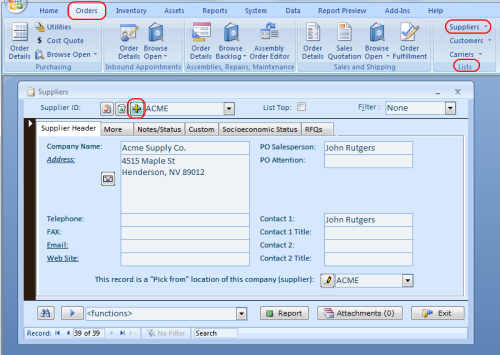
We will start inputting inventory items. First, we will input all kit components and then the kit itself. Go to the Inventory menu tab and click on the Item Master. The Inventory Item Master List screen appears. Click the Yellow Plus sign at the top of the Inventory Item Master List screen to create a new Item ID. Input "toothpaste" and press ENTER key. 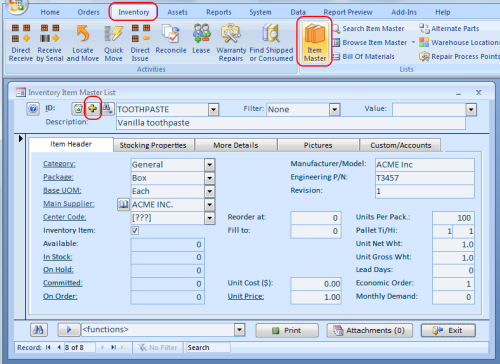
Open the Functions list at the screen bottom and select "Copy this record into a new one".
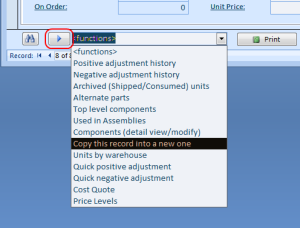
Type in "floss" and press ENTER key.
A new inventory item, very similar to the first one. It is faster to copy one similar item into another than to create each item from scratch,
Use the copy function (the Right Arrow button, left of the list) to create five more items.
Give them the following IDs: "brush", "coupon", "box", "label", and "tape".
Now, let us create a kit item and populate its list of components.
Click the yellow plus sign to create a new Item ID: "ACME-123456 KIT".
Pick [make] option in the Main Supplier field. The [make] selection is what makes item a kit.
Populate other fields if necessary.
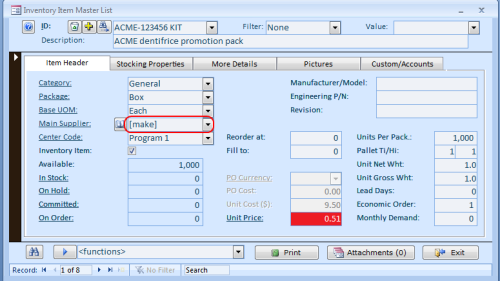
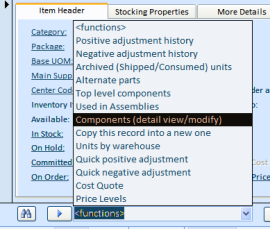
Now, select Components (detail view/modify) from the "functions" dropdown list. The BOM screen will appear.
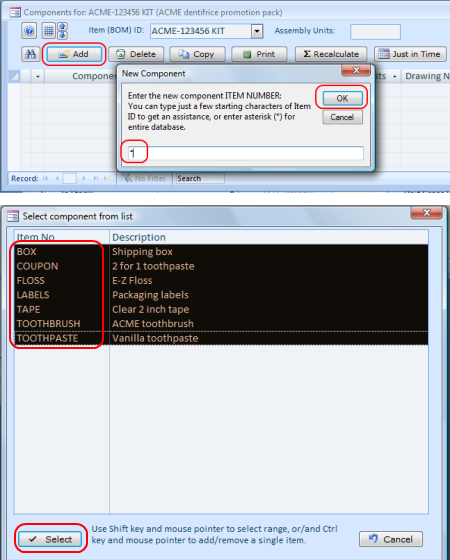
On the BOM screen, click the Add button and type "*" to browse all items. Use Shift key and left mouse button to select a range of items.
Use Ctrl key and left mouse button to select/deselect a single row.
Back on the BOM screen, specify number of units for each component to make a single kit.
Close the Bill of Materials screen.
Now, Almyta Control System knows what is included in an ACME-123456 KIT. Let us go ahead and increase inventory prosition (receive items) of the components.
Go to the Inventory/Direct Receive screen,
pick each component in the Item ID dropdown box,
specify number of units, select a value in the Adj. Code, and click the Receive button.
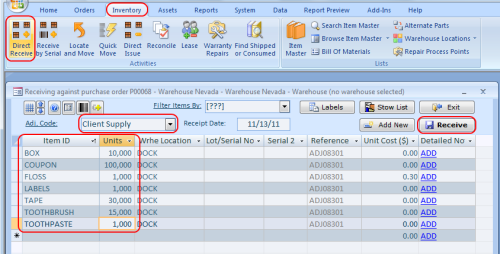
Now, we have got enough inventory to ship kits. In this tutorial, we will ship the kits back to our client Acme. We need to create a customer record in order to ship inventory to someone. The fastest way to create a customer record is to copy Acme information from its existing supplier record.
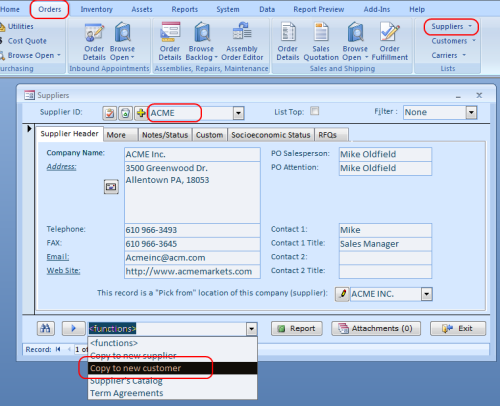
Go to the Orders/Suppliers menu and find the Acme record. At the screen bottom, select the Copy to new customer in the Functions list.
After the record is copied, the Customers screen gets opened. Close both Customers and Suppliers screens.
Now, we can create a shipping order and ship our kits back to Acme.
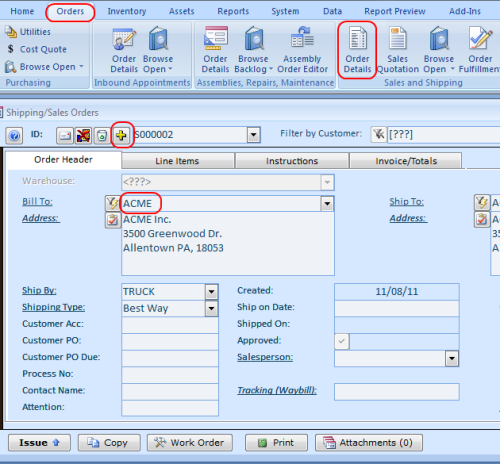
To create a shipping order, go to Orders/Sales and Shipping/Order Details and
click the Yellow Plus button. Select Acme in the Bill To field.
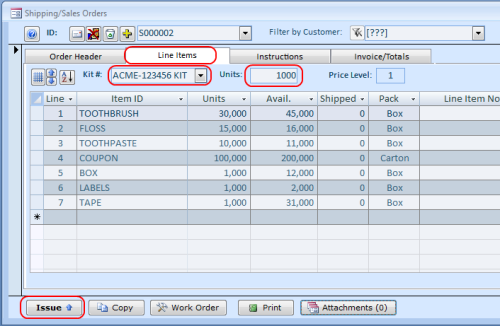
Switch to the Line Items tab and pick our kit from the drop down list, type in number of units (1000), and press the Enter key.
Almyta Control System populates the Shipping Orders screen with all kit components and quantities. To ship the order, click the Issue button.
The Issue screen will open.
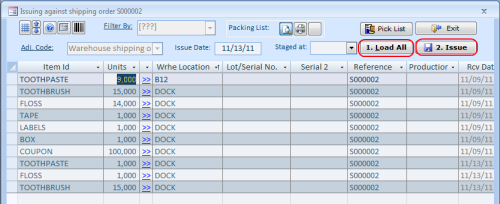
On the Issue screen, click the Load All button to pick our components, and then click the Issue button to record the transaction.
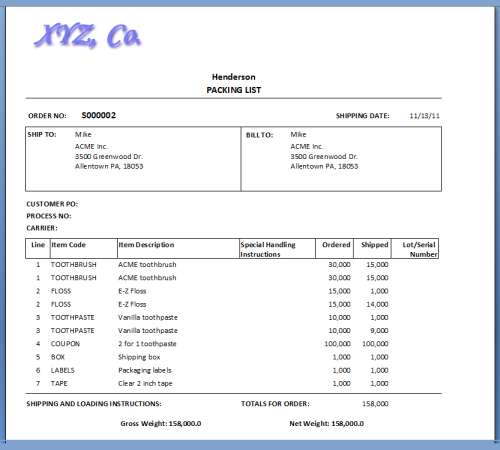
After the order is shipped, the packing slip will appear on screen. Print it by selecting the Quick Print in the menu or by simply pressing Ctrl+P keys.
|

|
| Buy Now
| Help
| Software License
| Privacy Policy
| Free Software
|
| Inventory Software Module | Why Almyta Inventory Software? | Inventory Software Lessons: | 0 | 1 | 2 | 3 | 4 | 5 | 6 | |
© almyta systems 2003 - 2025